

First-time setup
After Install & permissions, follow this workflow to try dictation. Figures are operation diagrams showing configuration order and data paths; the current app determines actual appearance.
Overview
Section titled “Overview”| Step | Where | Goal |
|---|---|---|
| 1 | Menu bar → Settings | Open configuration |
| 2 | General | Check recording permissions and input device |
| 3 | Voice models | Choose an engine; install resources or enter credentials |
| 4 | Shortcuts | Check hotkeys and trigger modes |
| 5 | Text processing / General | Check processing and output action |
| 6 | Notes or another text field | Test real recording and insertion |
1. Open Settings
Section titled “1. Open Settings”Choose VoiceHotkey menu bar icon → Settings. The main sidebar lists General, Shortcuts, Voice models, Text processing, Voice commands, File transcription, History; License and About appear at the bottom.
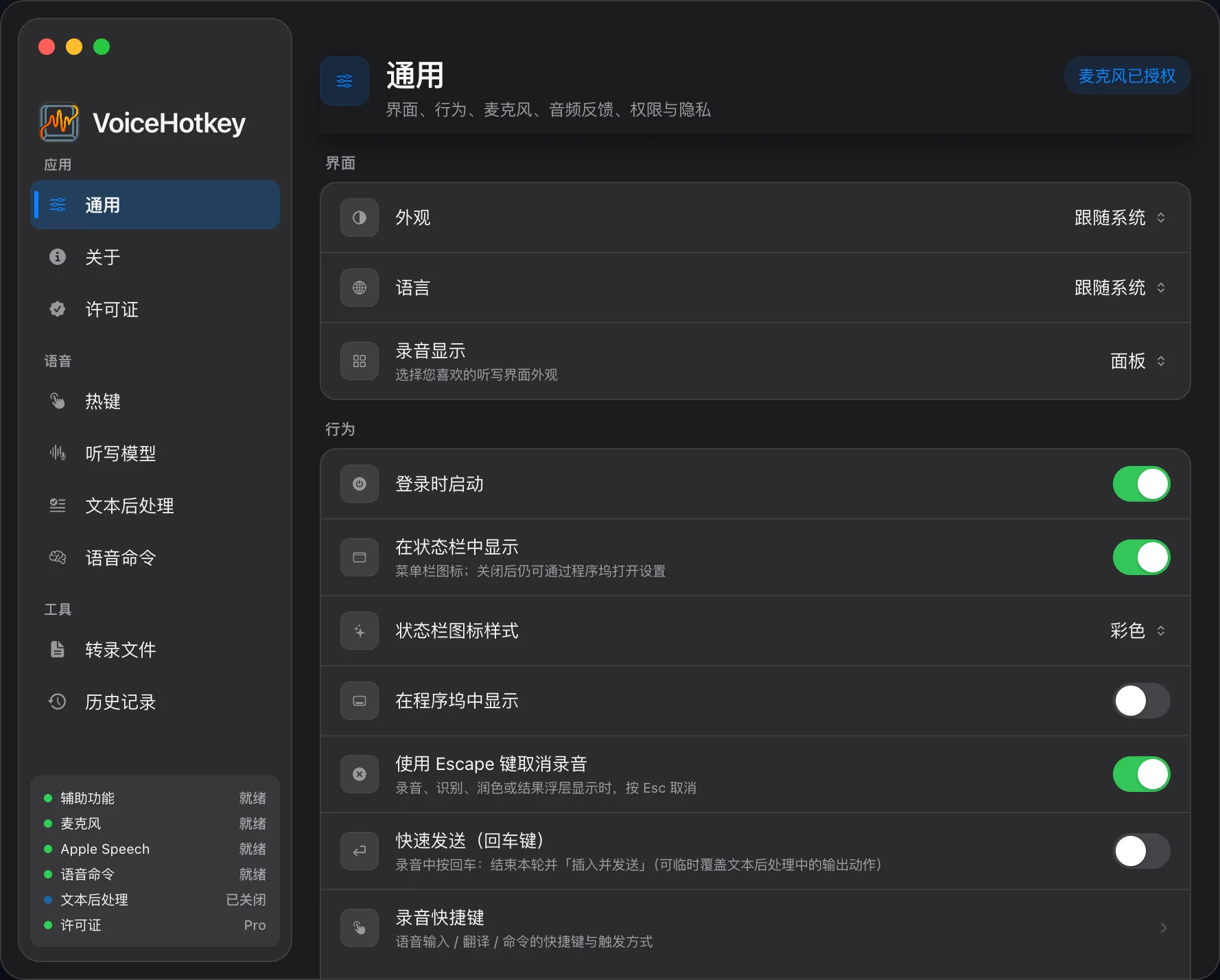
You can also open voicehotkey://tab/settings; see Deeplinks.
2. Check recording readiness
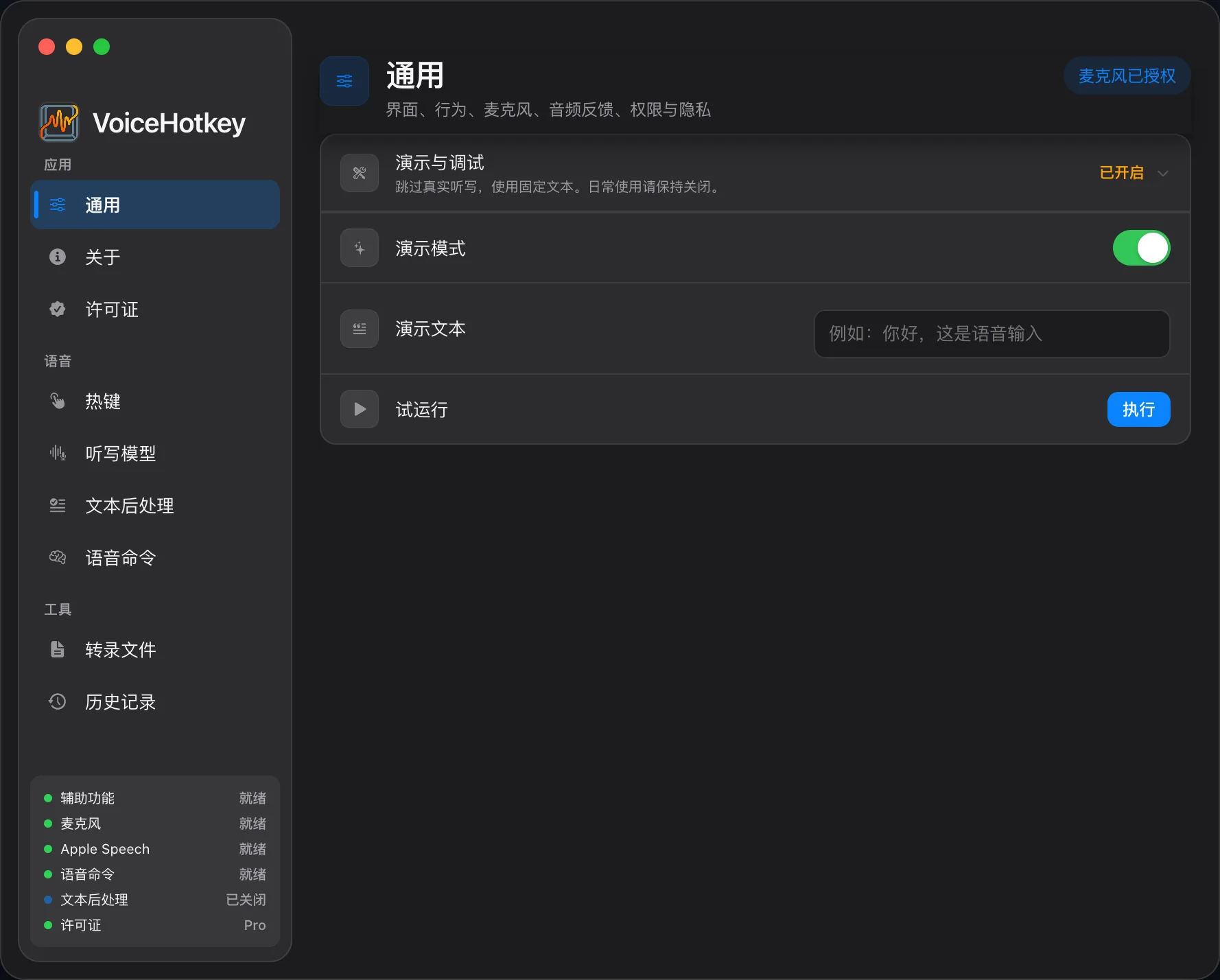
Section titled “2. Check recording readiness”New installations default to real ASR. You do not need to turn Demo off, and current General settings has no Demo switch.
Under Settings → General, check Microphone, Accessibility, and your input device. Address any missing-permission or model warnings in the menu bar. If a legacy configuration or test environment still shows Demo status, it means demo text is used; it does not establish that all cloud requests are disabled. See BYOK & data flow.
3. Choose a voice model
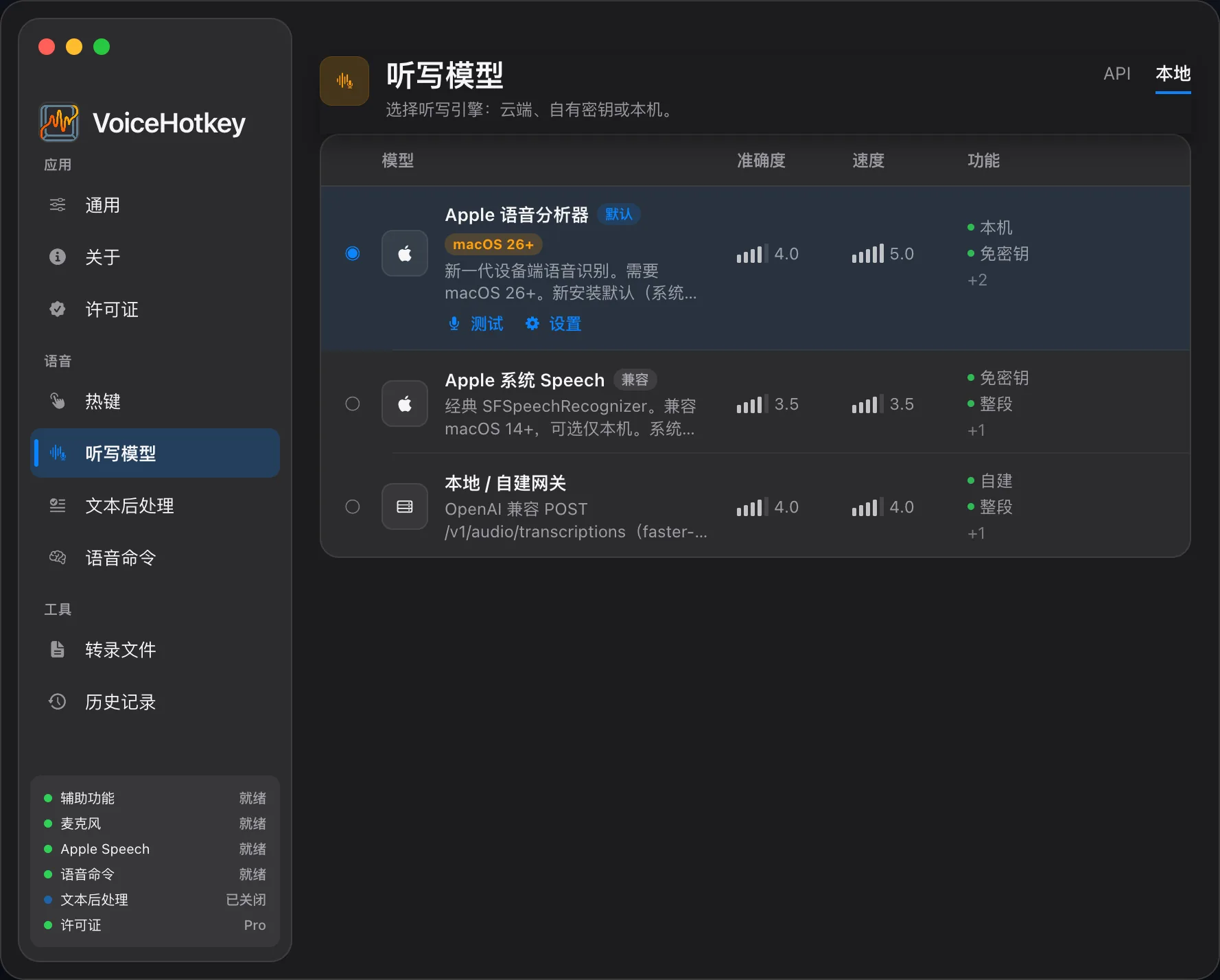
Section titled “3. Choose a voice model”- Open Settings → Voice models and select an available engine. Apple can be a first option; on-device models need their model and runtime resources installed first.
- For cloud ASR, enter the required credentials, model, and endpoint. API keys are stored in Keychain, and requests go directly to that provider.
- Check for missing-credential or resource warnings. See Voice models and Plans for system / hardware requirements and Free limits.
4. Confirm shortcuts
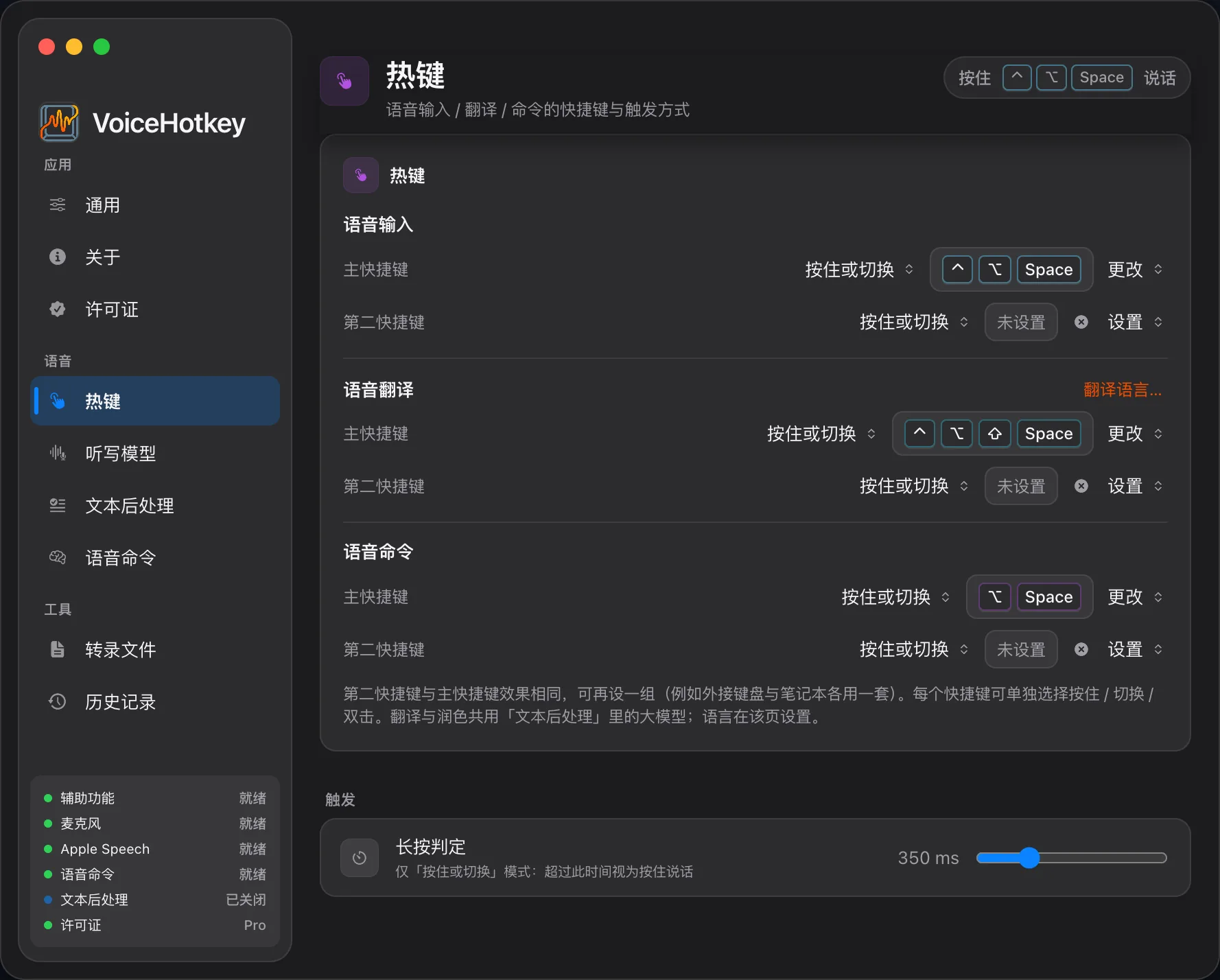
Section titled “4. Confirm shortcuts”Open Settings → Shortcuts. Voice typing defaults to Right Command, commands to Middle mouse button, and translation to Right Control. Direct Voice Typing is unbound by default.
The default trigger mode supports tap to start / tap again to finish, or hold to speak / release to finish. Rebind if another app conflicts. Quick Send and Esc cancellation controls are on Shortcuts; audio feedback is on General. See Shortcuts & recording.
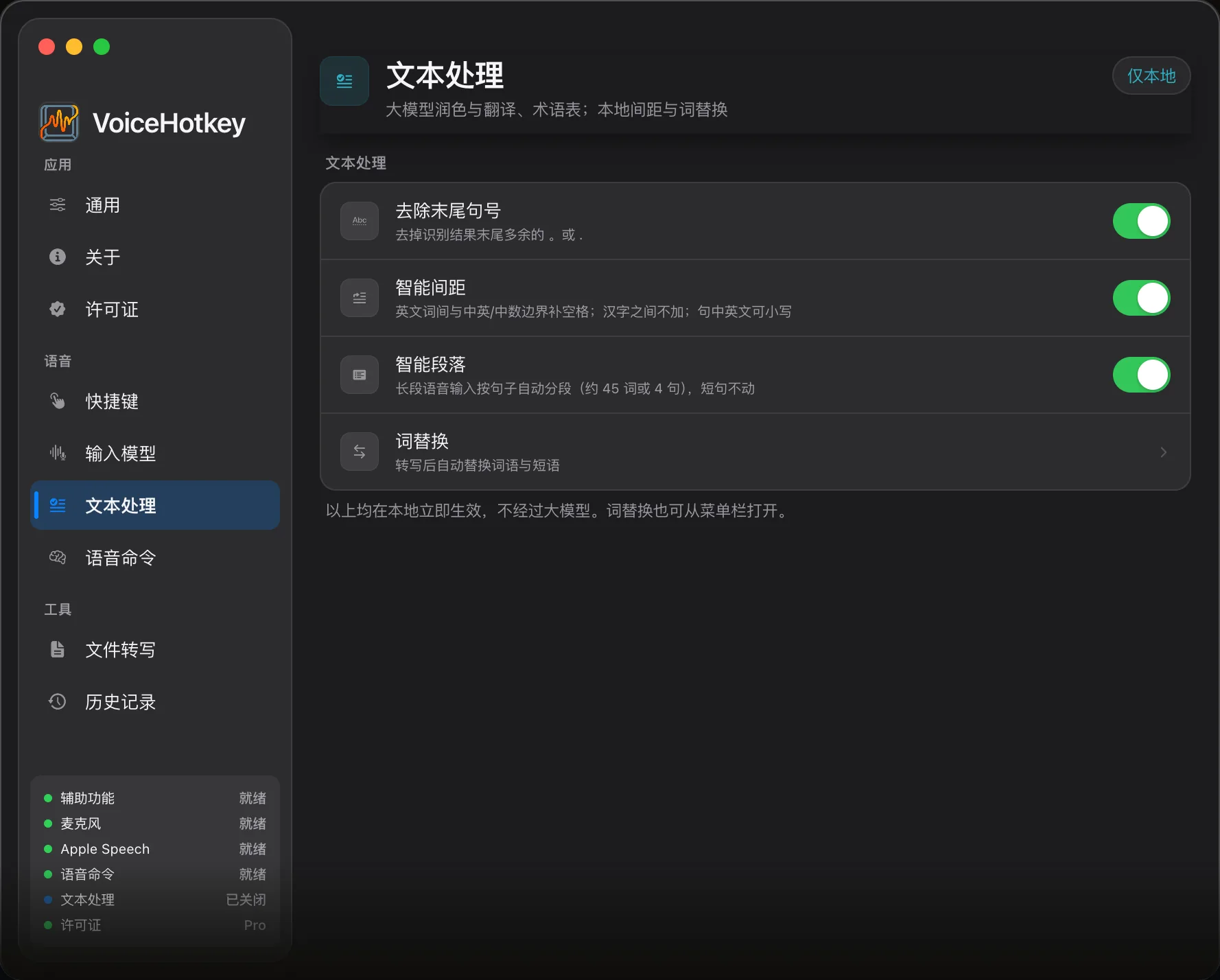
5. Text processing and output
Section titled “5. Text processing and output”Start with simple settings and add processing after dictation works:
| Option | Current default / location |
|---|---|
| Strip trailing period | On; Text processing |
| Smart spacing | Off; Text processing, enable if useful |
| Word replacements | Text processing; add for recurring errors |
| LLM polish | Off; cloud needs credentials, local needs installed models; adaptive polish requires Trial / Pro |
| Output action | General → Output action; defaults to insert at caret |
| Translation | Select engine and target in Text processing; Apple native requires macOS 26+, or configure an LLM |
Smart paragraphs are not a current feature. History-only mode is an internal setting and not offered in the current output menu; that mode saves to local history without insertion or automatic copying.
6. End-to-end test
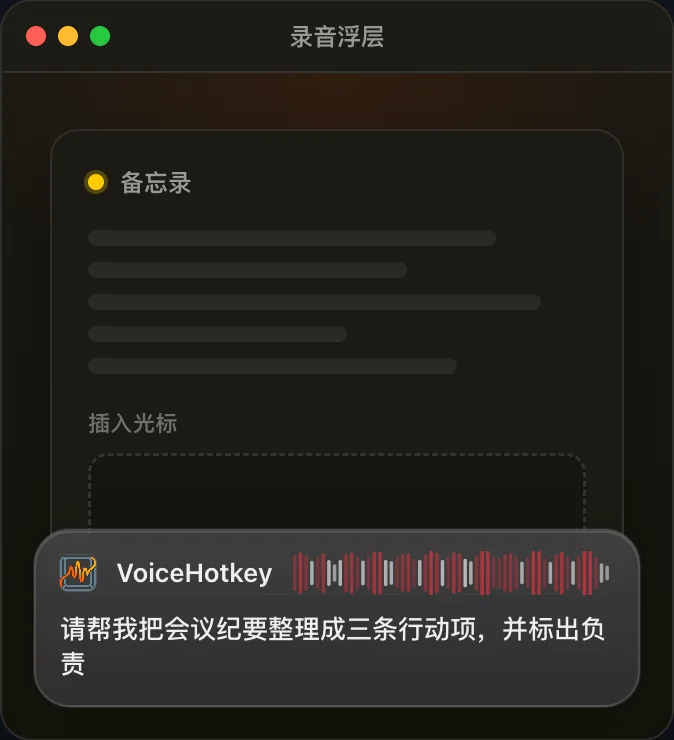
Section titled “6. End-to-end test”- Open Notes or TextEdit and click an editable text field so the caret blinks.
- Start recording with the voice typing hotkey and speak a short sentence.
- Tap again or release the held shortcut to finish.
- Wait for recognition and enabled processing, then check for text in the focused field.
- Check History for the result and status. Without an editable focus, the default can fall back to the clipboard; behavior depends on the output action and related settings.
If it fails
Section titled “If it fails”| Symptom | Go to |
|---|---|
| No hotkey response | Troubleshooting · hotkey |
| Recording but no text | Troubleshooting · no text |
| Permissions keep dropping | Troubleshooting · permissions |