

Troubleshooting
Pick a section by symptom and follow its checks in order. Figures are operation diagrams explaining troubleshooting paths and feature scope; your current app and macOS determine actual appearance.
Before you start: note these five
Section titled “Before you start: note these five”- macOS version
- VoiceHotkey version (Settings → About)
- Recognition engine name
- Local Only on/off
- App path (Finder → Get Info)
Hotkey does nothing
Section titled “Hotkey does nothing”No overlay, no menu-bar status change, no system feedback.
Checklist
Section titled “Checklist”- Menu bar icon present (app running)
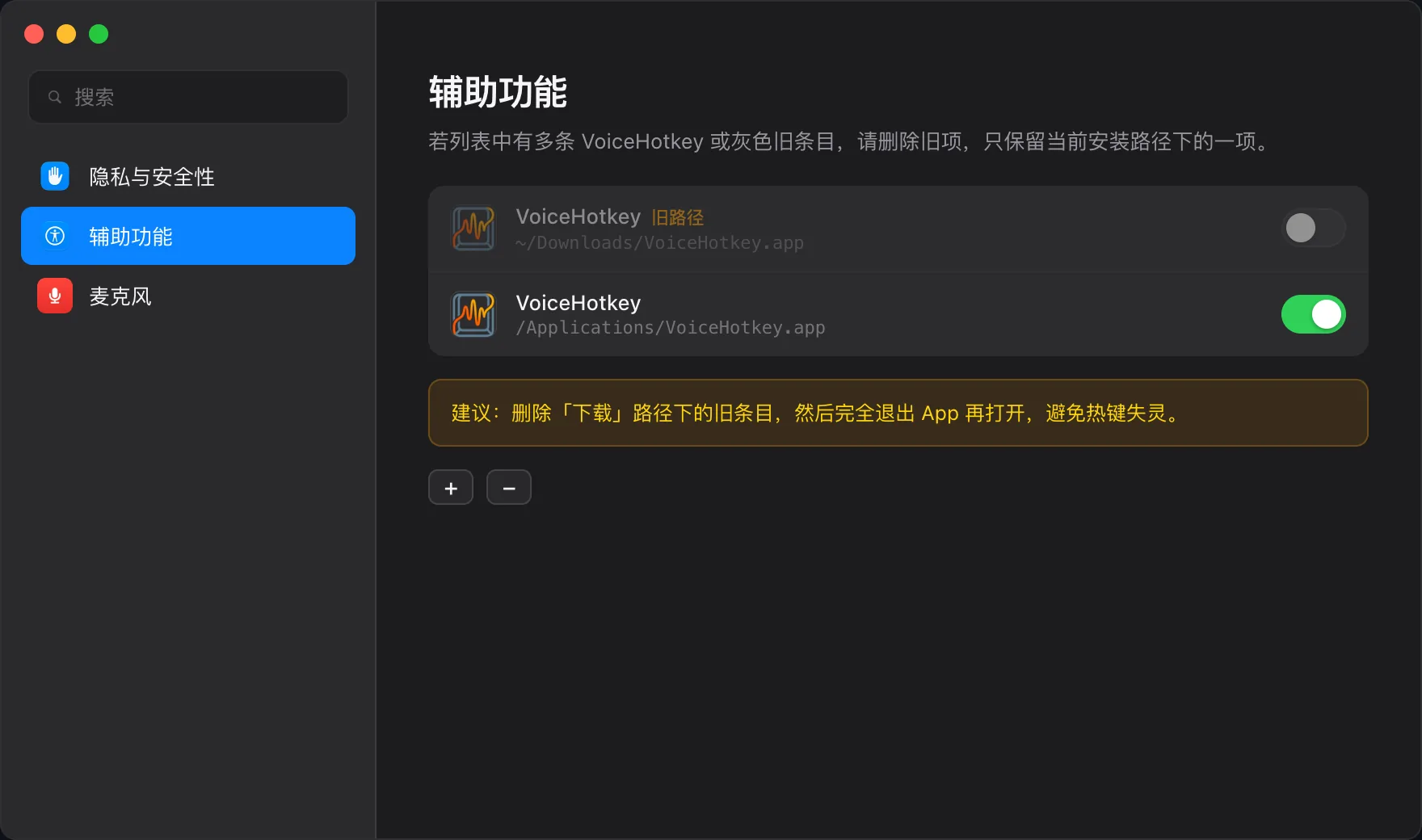
- Accessibility enabled for the current app path
- Launched from
/Applicationsor~/Applications - Hotkey not conflicting with another app
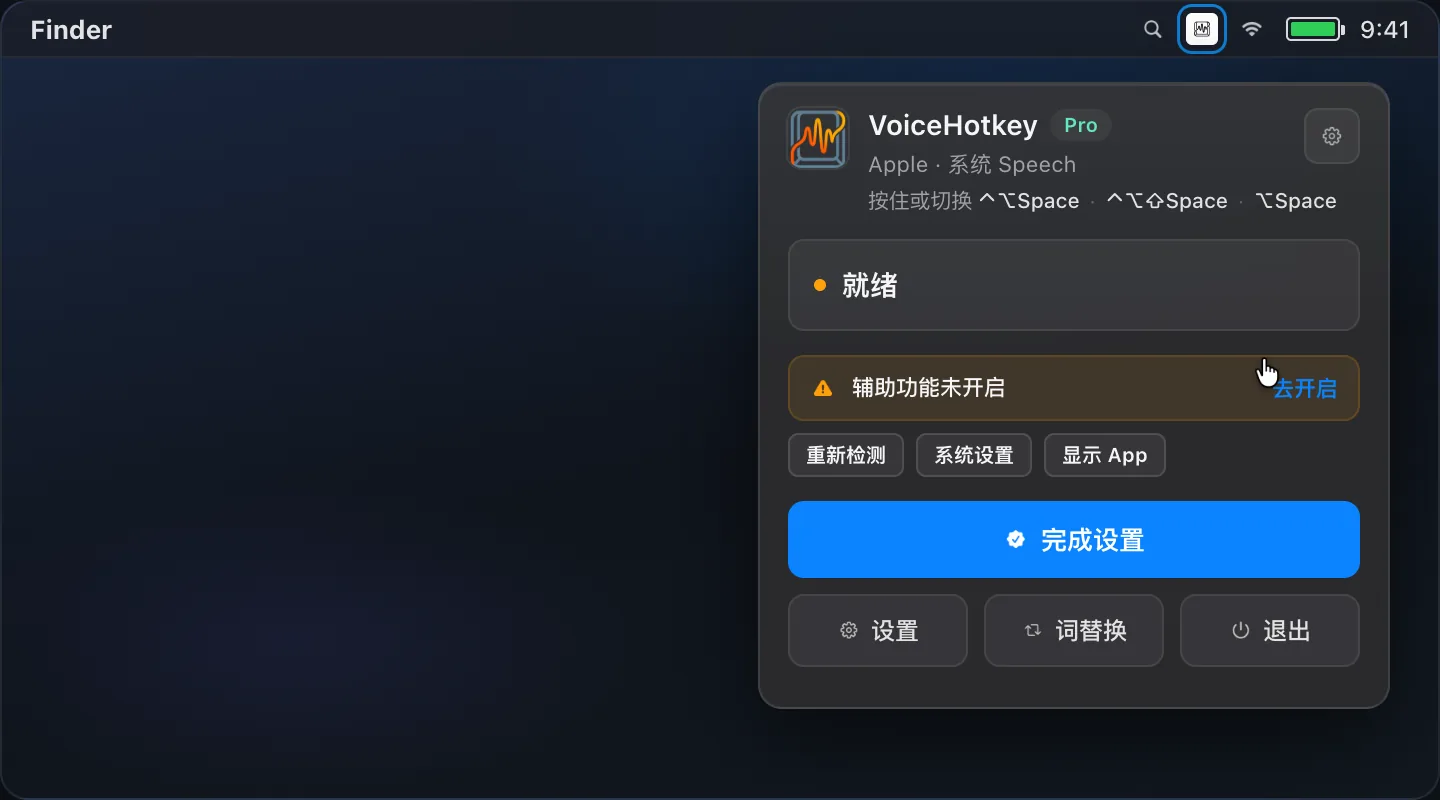
- Hotkey page not warning about Accessibility
- Process — Menu bar icon should open a menu. Relaunch from Applications if missing.
- Accessibility — System Settings → Privacy & Security → Accessibility. One VoiceHotkey row, correct path, switch on. Remove duplicates, quit and reopen the app.
- Stable path — See Install & permissions.
- Rebind — Settings → Shortcuts → record a less common chord.
- Conflicts — Quit tools that clash with defaults: dictation
Right Command, commandMiddle mouse button.
Recording but no text
Section titled “Recording but no text”Overlay shows listening, but the field stays empty or processing never finishes.
Checklist
Section titled “Checklist”- Microphone granted; correct input device
- Engine ready (cloud credentials / Apple or local resources)
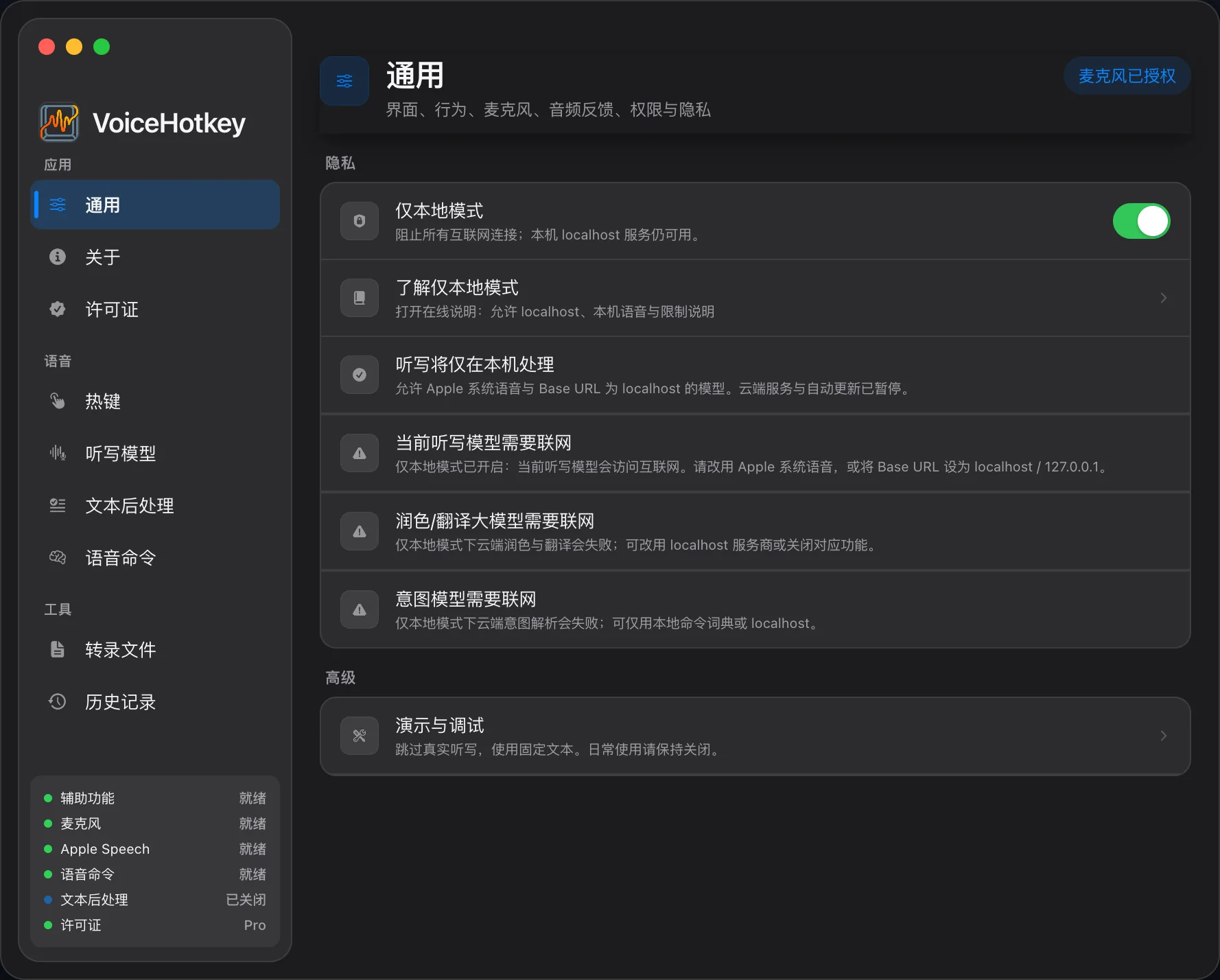
- Local Only not blocking a cloud engine
- Network / quota / key validity
- Caret in a normal text field (secure fields may block insert)
- Recording readiness — new installations default to real ASR, and current Settings has no Demo switch. Check microphone access and input device. For legacy / test demo status, see First-time setup.
- Read menu bar status — mic needed, engine not configured, Local Only blocked, etc.
- Microphone — enable for VoiceHotkey; verify hardware with Voice Memos.
- Engine — try Apple as a control. If Apple works but cloud fails → key/network/quota.
- Local Only — public engines fail when Local Only is on.
- Output — Check Settings → General → Output action. History-only is an internal mode not present in the current menu; it saves to history without insertion or automatic copying. Copy uses the clipboard. For insertion, select Insert at caret and focus an editable field. The default can copy when no editable focus is found. Try Notes if a terminal or secure field blocks injection.
Permissions keep resetting
Section titled “Permissions keep resetting”Worked yesterday; hotkey dead today; Accessibility looks half-set.
Common causes
Section titled “Common causes”| Cause | Notes |
|---|---|
| Path changed | Downloads, another folder, or a different build path |
| Signature / replace | Overwrite install treated as a new app |
| Duplicate rows | Wrong Accessibility entry bound |
- Keep a single app in Applications.
- Quit VoiceHotkey fully.
- Remove stale VoiceHotkey rows from Accessibility. Check the current app’s permission switch on Microphone.
- Launch from the fixed path and re-grant.
- Always open that same path instead of switching between installed copies.
Polish / translation unchanged
Section titled “Polish / translation unchanged”- Polish enabled / using the translation hotkey
- Processing engine ready (cloud credentials / local model / Apple language resources)
- Local Only not blocking the API
- Polish failure may retain the original text; check History and status messages
- Settings → Text processing: polish on; translation uses its own hotkey.
- For cloud LLMs, check credentials, model, and endpoint; for local Spark, check installation. Apple native translation requires macOS 26+ and language resources, without an LLM key; it is unavailable on older systems.
- Local Only blocks public LLMs. Use an on-device model / loopback endpoint, or turn the mode off if appropriate. App-adaptive polish also requires Trial / Pro.
- Ensure raw voice typing works before enabling polish.
Voice commands do nothing
Section titled “Voice commands do nothing”- Settings → Voice commands → Enable voice commands is on
- Command hotkey is registered and Accessibility is granted
- The needed action capability is enabled, such as Allow hotkeys
- User-dictionary entries are enabled and phrases match (exact then fuzzy)
There is no built-in phrase catalog; create and enable user entries. Free-form intent and selection rewrite require a Trial / Pro intent model. Window actions need Accessibility; reminders / events need the corresponding full access. See Voice commands.
Shell commands don’t run
Section titled “Shell commands don’t run”The current version has no Shell execution, Allow Shell, Shell confirmation, or environment settings. Old Shell entries are unsupported. Changing Trial / Pro status or searching for removed controls cannot enable them. Use supported dictionary actions, prepared Shortcuts, or system control; see Shell command status.
License features locked or activation unavailable
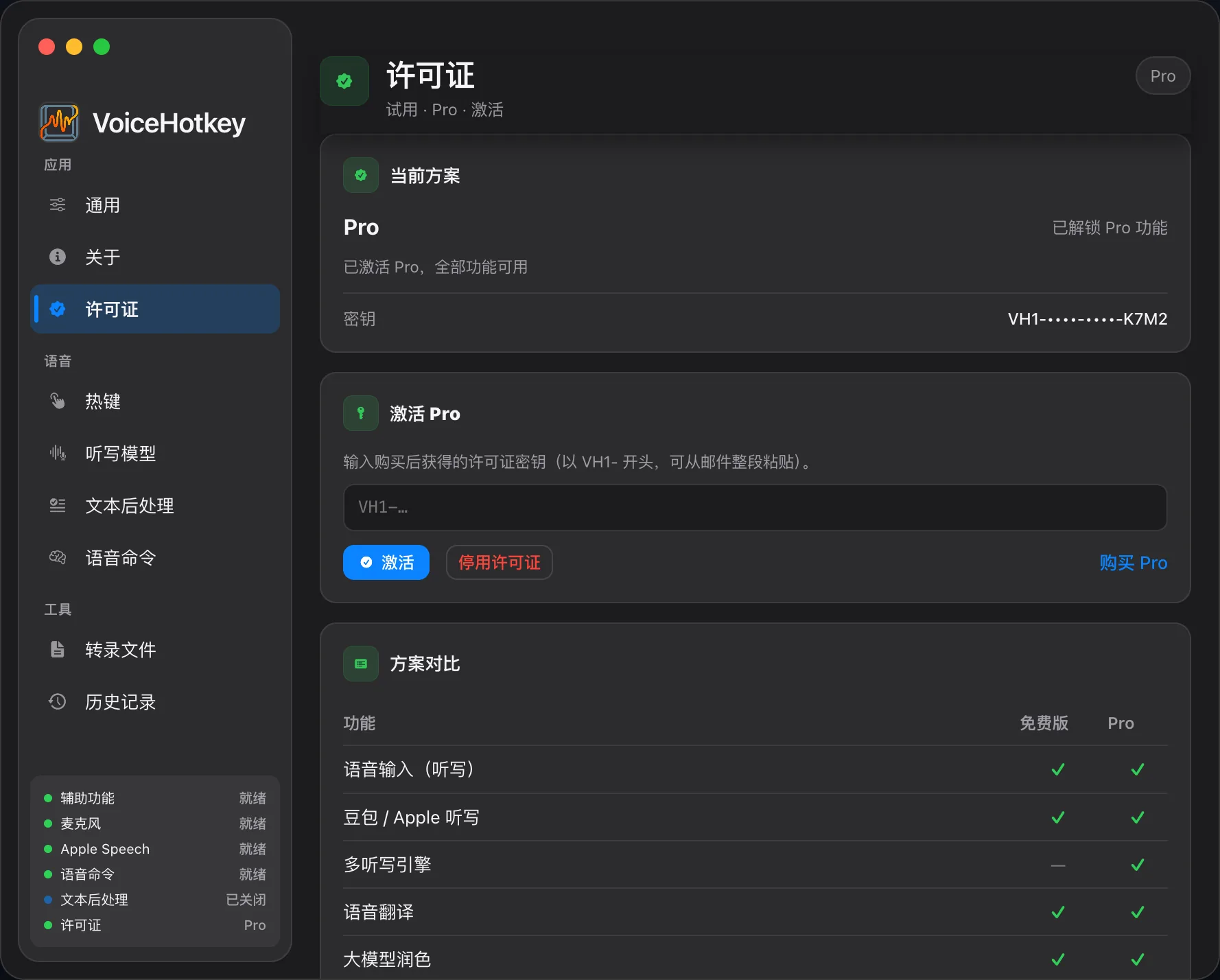
Section titled “License features locked or activation unavailable”Check the plan under Settings → License. Free includes basic polish and user commands, while intent, selection rewrite, adaptive polish, in-app file transcription, and custom history require Trial / Pro. The Activate Pro form appears on both Free and Trial; activated Pro uses Change key….
For a device-limit error, deactivate the old Mac while online. A failed unbinding request may leave the cloud seat occupied despite local deactivation. Network / server errors can fall back to local signature validation; explicit revoked / invalid / device-limit responses do not. See License & terms.
Quick scenarios
Section titled “Quick scenarios”- Path + both permissions
- Check microphone and input device
- One working engine
- Test in Notes
- Launch the new build from Applications
- Clear stale Accessibility rows and re-grant
- Confirm About version
- Cloud APIs must be reachable
- Or use Apple, all built-in on-device engines, or localhost
- Local Only blocks public ASR / LLM and pauses updates; licensing can still use the network
Still stuck
Section titled “Still stuck”- Re-run the first-setup dry run.
- Collect the five items at the top.
- File an issue via Contact.